How to configure an Airtable API KEY for Gridfy.io?
To connect to your Airtable account within Gridfy.io, you first need to create a connection through your account.
To do this, simply go to the Dashboard and click on the connections option, where you will be asked to add an API key.
You will find a link to easily access the Airtable Administration panel.
Creating a new connection
To create a new connection in Gridfy.io, go to Dashboard > Connections > Create New Connection. A reference image is attached on the right.
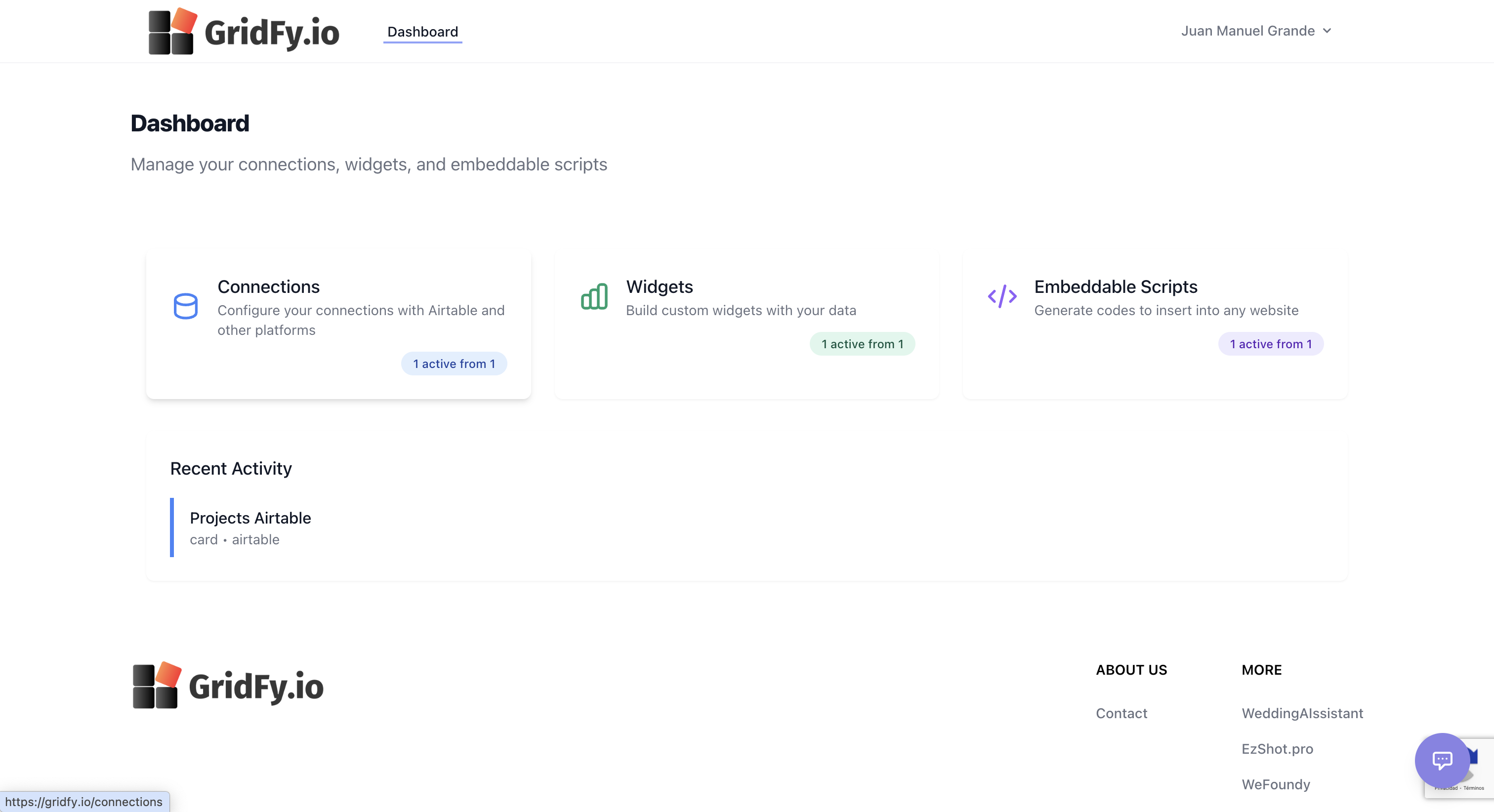
Dashboard screen accessed to create new connections
Obtaining a new Airtable API KEY
If you do not have an Airtable key, you can easily obtain one while creating the connection. Within the connection window, a link will be displayed that, when clicked, will take you to the Airtable platform where you can create a new key or use an existing one.
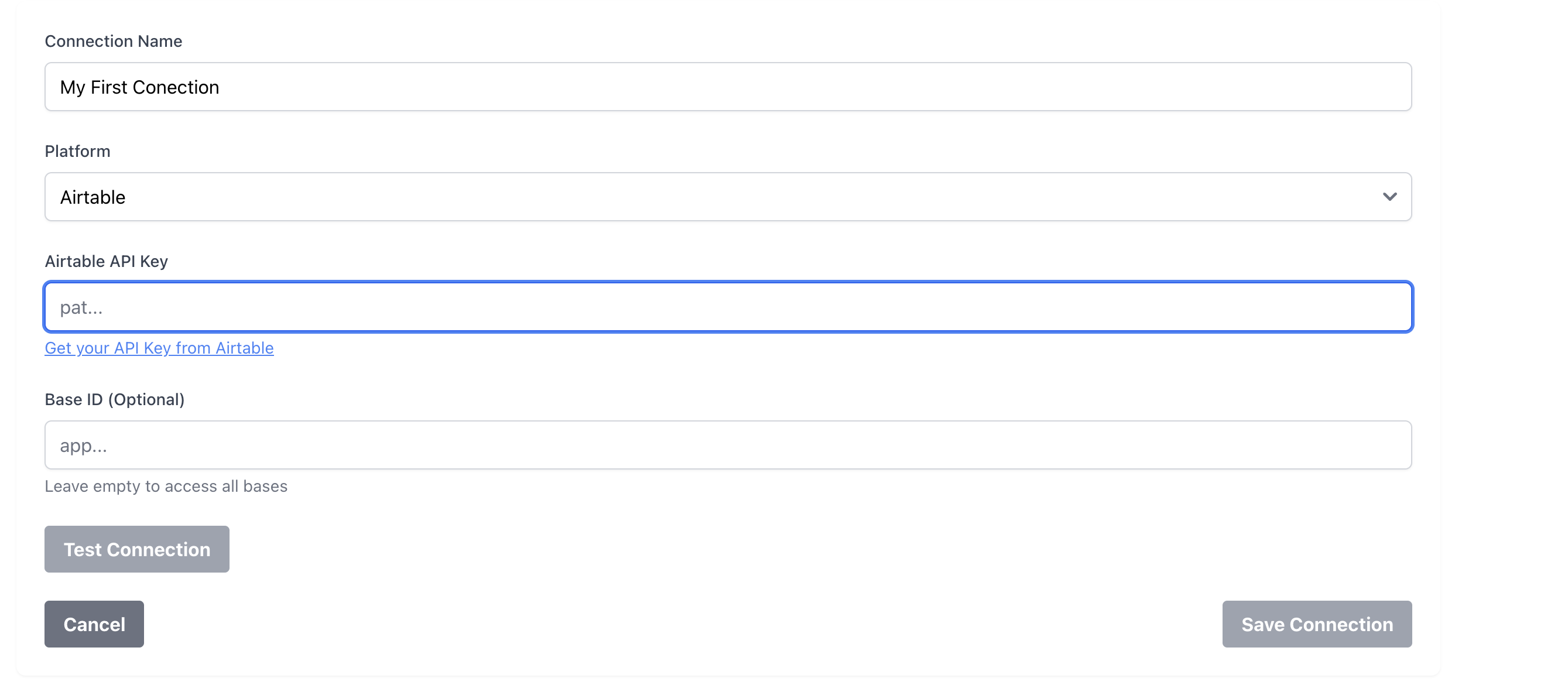
New connection configuration screen with link to obtain Airtable Key
Configuring necessary permissions in Airtable
For the connection to be established correctly, the API key must be assigned the permissions described below:
- data.records:read
- schema.bases:read
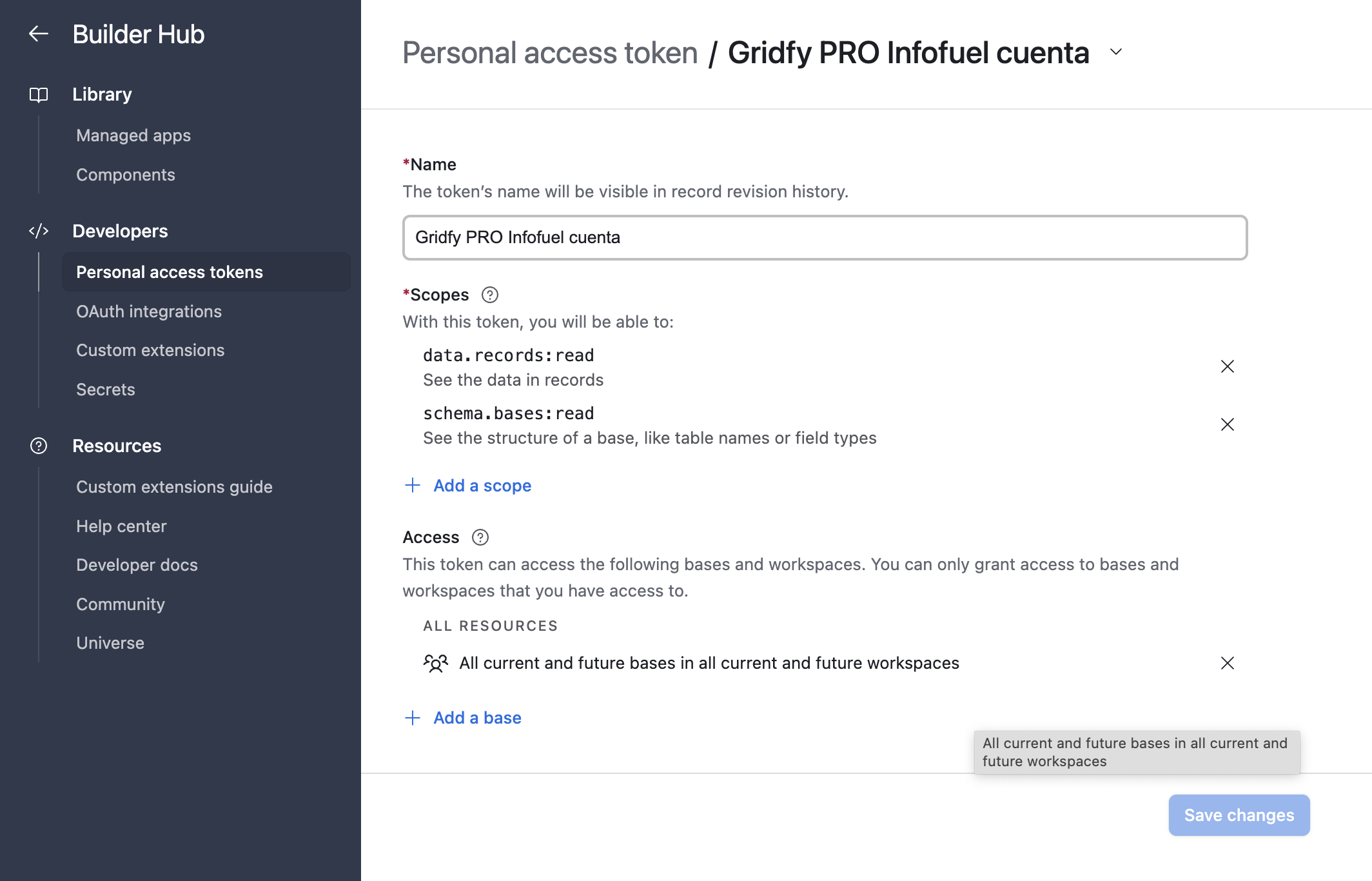
Permissions required for Gridfy.io to work with Airtable.
Check the connection is working
To verify that the connection has been configured correctly, once we have established the name of our connection and the API Key we have created, we just need to click on the “Test connection” button.
If the connection is correct, we will see a success message as shown on the right. At this point, the user only needs to click “Save Connection” to save their connection.
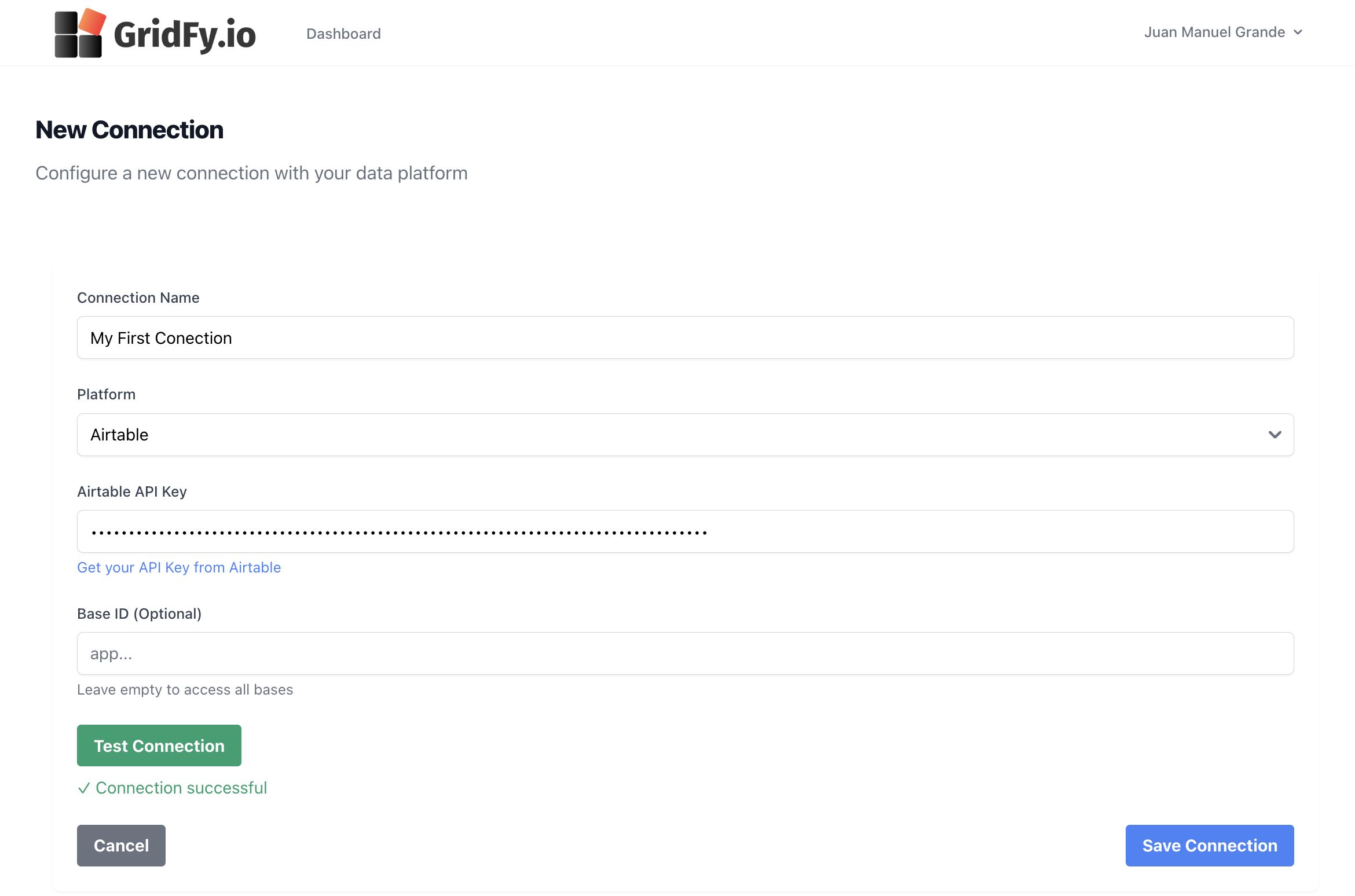
Connection test successful after configuration
Airtable usage limitations
Gridfy serves as a bridge between your website and Airtable, but API usage limits will be defined by your Airtable plan or subscription.
If you have a free Airtable plan, the number of API calls will be limited to 1,000 (you can find more information here).
Common Airtable errors
Connection errors: If you are unable to create your connection in Gridfy, this is most likely due to permission issues with the API key configured on the platform. Please refer to the section required permissions.
Data errors: If your widgets are not displayed after correct configuration, this may be related to the API usage limit associated with your plan. Please refer to the section Airtable limitations